

Introduction
The Sitecore Cache Tracker is designed to monitor cache performance within a Sitecore application by tracking cache statistics. This is targeted for Developers for managing caches efficiently.
Future enhancements will further improve the system’s efficiency, security, and user experience through Azure integration, real-time monitoring, and advanced analytics.
This documentation outlines the key functionalities of the script, ways to extend its capabilities, and future improvements to keep the cache management robust and scalable.
Current Functionality
1. Fetch Cache Statistics
– Collects cache data using Sitecore’s CacheManager using Powershel.
– Captures cache name, size, maximum size, and item count.
2. Save Statistics
– Exports cache data to a timestamped text file.
– Stores files in the `/CacheStatsTracker/` directory within the application.
– CacheStatsTracker folder has 3 more files
- CacheTracker.js : Responsible for updating the “RemainingTxtFiles.txt” file with exported file names, loading the dropdown with all the available cache names from the snapshots data, and updating the chart with selected cache data.
- CacheTracker.html : Includes HTML elements necessary to display Cache Historical data and controls. Utilizes the Chart.js library from https://cdn.jsdelivr.net/npm/chart.js to render the data in chart format.
- RemainingTxtFiles.txt : Contains the list of collected cache data file names.
3. Clean Up Old Files
– Deletes cache statistic files older than 7 days.
– Maintains an updated list of current cache statistic files.
Advantages
- Shows cache fluctuations over a period. The default Sitecore cache page only shows a snapshot at a given point time. Additionally Health stores the cache data, extracting it out of the box is difficult.
- This module does require any deployment. It works in any environment.
Extendable Functionality recommendations
- Pushing Files to Azure Blob Storage
- Purpose: Secure cache statistics files and prevent server overload.
- Method:
– Use Azure Storage SDK to upload files.
– Schedule the upload process via Azure Functions or a scheduled task. - Benefits:
– Enhanced security.
– Reduced local storage usage.
- Automated Event Trigger for Cache Scavenging
- Purpose: Automate notifications and additional actions upon cache scavenging events.
- Method:
– Leverage Sitecore events or custom monitoring scripts. - Benefits:
– Immediate response to cache changes.
– Better tracking and alerting mechanisms.
- Avoid using an open-source Chat library. The solution provided here utilizes PowerShell. Alternative back-end options may be considered if PowerShell is not installed.
Future Plans
1. Enhanced Monitoring Dashboard
– Develop a user-friendly interface to visualize cache statistics.
– List top cache anomalies
2. Real-time Notifications
– Integrate with messaging services (e.g., Slack, Microsoft Teams) for instant alerts on significant cache events.
Powershell Script Walkthrough
1. Fetching Cache Statistics
    function Get-SitecoreCacheStatistics {
        $caches = [Sitecore.Caching.CacheManager]::GetAllCaches()
        $cacheInfo = @()
        foreach ($cache in $caches) {
            $info = New-Object PSObject -Property @{
                Name  = $cache.Name
                Size  = $cache.Size
                MaxSize = $cache.MaxSize
                Count = $cache.Count
            }
            $cacheInfo += $info
        }
        return $cacheInfo
    }
2. Saving Statistics to a File at root folder CacheStatsTracker
    $cacheStats = Get-SitecoreCacheStatistics
    $applicationRootPath = [System.Web.Hosting.HostingEnvironment]::ApplicationPhysicalPath
    $outputPath = $applicationRootPath + "/CacheStatsTracker/"
    $filename = "CacheStats_$(Get-Date -Format "MMdd_HHmm").txt"
    $filepath = Join-Path $outputPath $filename
    $cacheStats | ConvertTo-Json | Out-File -FilePath $filepath -Encoding UTF8
    Write-Host "Cache statistics exported to $filepath"
3. Deleting Old Files
    $currentTime = Get-Date
    $cutoffDate = $currentTime.AddDays(-7)
    $txtFiles = Get-ChildItem -Path $outputPath -Filter "*.txt"
    foreach ($file in $txtFiles) {
        if ($file.CreationTime -lt $cutoffDate) {
            Remove-Item $file.FullName
        }
    }
    Write-Host "Removed txt files older than $cutoffDate"
4. Listing Remaining Files
   $remainingFiles = Get-ChildItem -Path $outputPath -Filter "*.txt" | Where-Object { $_.Name -ne "RemainingTxtFiles.txt" }  | Select-Object -ExpandProperty Name
    $outputFilePath = Join-Path $outputPath "RemainingTxtFiles.txt"
    $remainingFilesJson = $remainingFiles | ConvertTo-Json -Compress
    $remainingFilesJson | Out-File -FilePath $outputFilePath -Encoding UTF8
    Write-Host "Updated cached stats files into $outputFilePath"
Sitecore Cache Statistics Graphical Presentation
This script provides a user-friendly interface to visualize Sitecore cache statistics, allowing users to select different caches and view their data over time. It leverages asynchronous data fetching, dynamic chart rendering, and efficient data management to ensure a smooth and informative user experience.
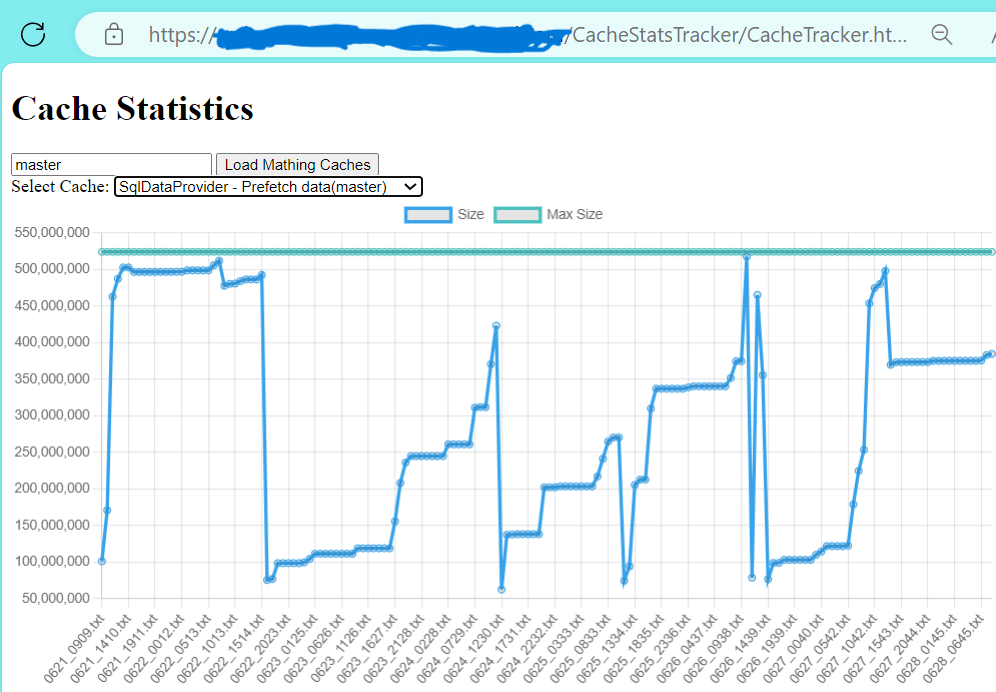
Sitecore Cache Tracker Package:
Install Sitecore Package in any(Develop/Production) instance and start tracking the Caches:
 Vikrams Technology Blog