

It’s one of the common error .net web developer come across “Could not load file or assembly’AssemblyName, Version=versionumber, Culture=neutral, PublicKeyToken=tokennumber’ or one of its dependencies.“.
I found the following steps should resolve in most cases
- Open ILDASM.exe at “C:\Program Files (x86)\Microsoft SDKs\Windows\v10.0A\bin\NETFX 4.6.2 Tools\ildasm.exe”
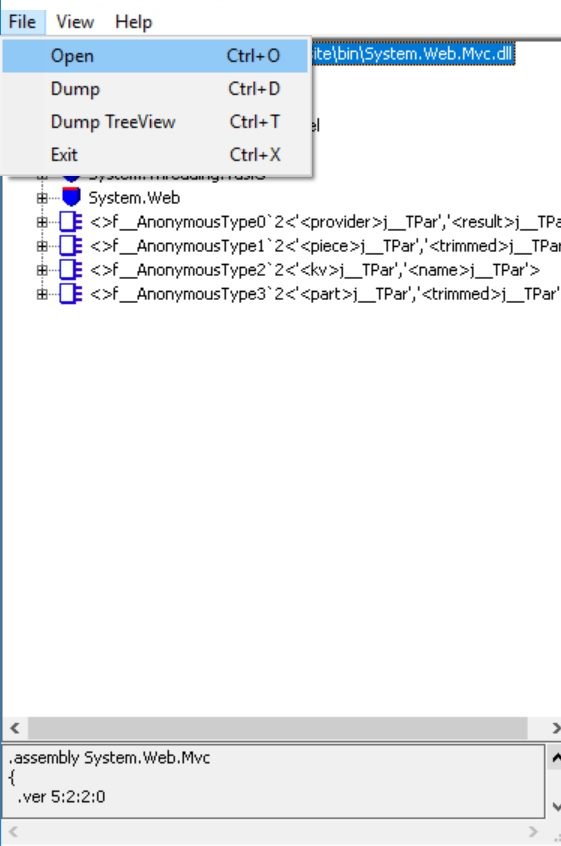
- Open the the assembly file which is causing the error through ILDASM as follows
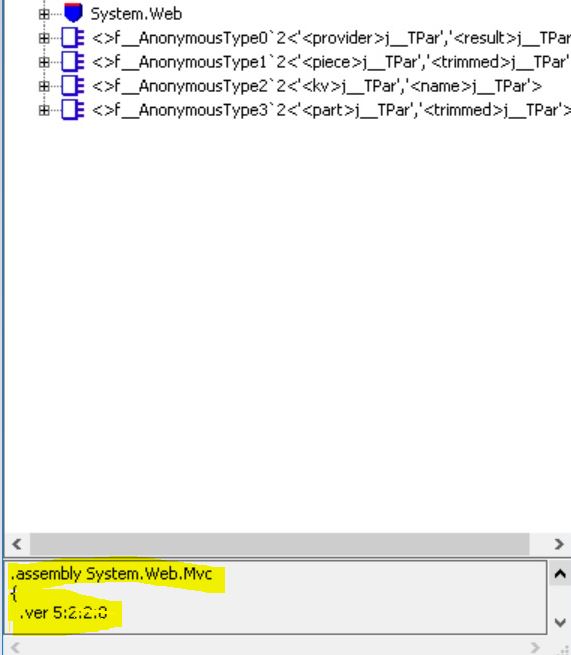
- Get the Assembly version from the ILDASM after you open the file as shown below
- Use the version number and replace web.config at dependentassembly element, newversion attribute as shown below. Don’t forget to change oldVersion to higher number to cover the range.

- Also at Compilation>assemblies element version filed

What is the Problem:
configured version and assembly version in bin folders are not matching
Okay, what we did:
By making above config changes we are telling to framework/current application use this particular version of assembly.
Points to Note:
- Don’t use file version from file explorer, they are not accurate.
- Dont forget to change oldVersion range
 Vikrams Technology Blog